

Stop shipping browser bugs when you update your WordPress website. This article explains how to set up Playwright automated tests for WordPress, from saved logins to continuous integration, before the next update.
Author: Samrat Biswas, Unified Infotech Private Limited
Imagine, your team ships a new landing page, tests it in Chrome, and finally launches it. Everything is fine until you receive a support email. A customer on Safari is unable to submit a signup form. One of your team members opens Firefox to check and notices the dropdown menu doesn’t even open. Nobody saw that coming, as every test, every single time, ran in one browser. The site worked, but it just did not work on every browser.
This is one of the most common problems in WordPress QA, and Playwright for WordPress can solve this problem. Chromium, Firefox, and WebKit render pages and run scripts differently, so a test suite built around one browser will catch some bugs, but not browser-specific compatibility issues. Playwright runs the same test across all three browsers from one codebase using configuration. It automates the clicks, form fills, and page checks, eliminating the need for a human tester.
Why Use Playwright for WordPress E2E Testing?
A WordPress site often combines themes, custom JavaScript, APIs, plugins, page builders, forms, and third-party services. Testing everything with traditional E2E testing becomes complicated. Traditional testing frameworks that may depend on separate browser drivers can easily break after major browser updates. Asynchronous REST API calls and page builder scripts may finish at different times. As a result, tests with fixed timeouts fail even when the site is working correctly. Playwright test automation solves these problems directly.
- With Playwright, one API runs tests on different browsers like Chromium, Firefox, and WebKit. So you can catch bugs that only show up in one browser.
- Each test gets its own clean browser context instantly, so multiple tests can run at the same time without starting a new browser every time.
- Playwright does not rely on fixed timers. It waits for elements to become actionable before acting. This helps prevent tests from failing while WordPress pages, plugins, or API content are still loading.

How to Automate WordPress End-to-End Tests With Playwright
WordPress end-to-end testing with Playwright starts with installing this testing framework, pointing it at a test environment, saving your login once, and then writing tests for real workflows. This is how each step works.
Install Playwright and Set Up Your Test Project
The first step is to install Playwright by running npm init playwright@latest. Once you do that, it creates your test folder and config files for you. Now you need to choose between TypeScript and JavaScript. If your test suite will grow large, you should choose TypeScript. It helps you to catch typos in your selectors before you even run the test.
Point Playwright at a Local or Staging WordPress Site
Now it’s time to set the baseURL in playwright.config.ts to a local WordPress setup like Flywheel, Docker, or LocalWP. Always remember that you should not use E2E suites directly against your live production site because testing against a live site can be risky. Content and cached pages can change while your test is running. This breaks tests for reasons that have nothing to do with bugs.
Log In Once and Reuse That Login
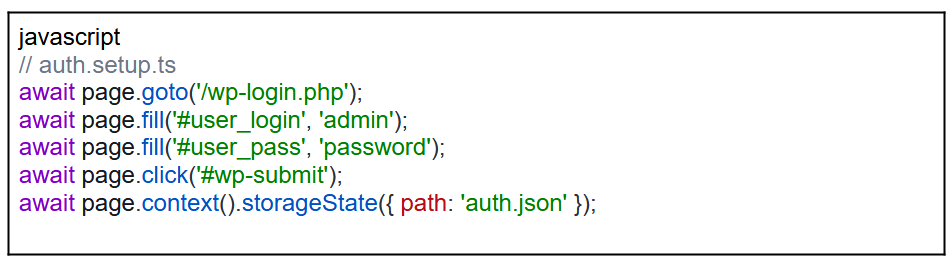
Do this right because this is the part that saves a lot of time. You just need to write one setup script that logs into wp-admin and saves the login session to a file using storageState. After that, your other tests just load using that saved session. This makes the tests faster and eliminates the need to repeat the same login steps. This is what it looks like.
Write a Test for a Real WordPress Task
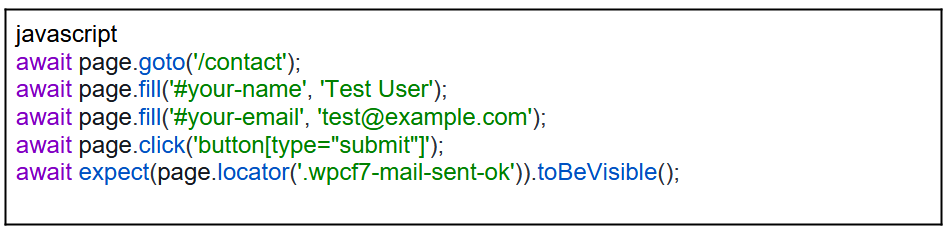
You must focus on WordPress E2E testing coverage on user journeys with direct business impact. So try to complete a form submission, add a product to cart in WooCommerce, or publish a post in the block editor. Keep the test simple: go to the page, fill in a field, click a button, check the result. Here’s a simple WordPress E2E test for a contact form.
Find Elements Inside Gutenberg and Page Builder Markup
When Gutenberg, Elementor, or Divi changes its nested <div> structure or auto-generated class names, WordPress selectors often break. So, relying on CSS classes is risky. Use a stable data-testid attribute through a small must-use plugin, or Playwright’s role-based (getByRole()) and text-based (getByText()) locators. These rely on rendered content and accessibility attributes.
Wait for Things to Actually Finish Loading
Using admin-ajax.php, WordPress often makes background requests. Playwright handles most of this by waiting until an element is ready to use. For more complex async cases, waitForLoadState(‘networkidle’) can help. However, you must avoid it on sites with polling scripts or live chat widgets. Because they keep sending network requests, the network never becomes idle, and the test may time out.
Run Tests Headless Locally and in CI
You can use headed mode on your own machine so you can watch the browser execute each step and catch what’s going wrong visually. Switch to headless mode in CI, where nobody’s watching and execution speed matters more. A basic GitHub Actions workflow can trigger Playwright’s test runner against a staging deployment on every push. But it fails the build if any test fails.
Debug Failed Tests With the Trace Viewer
When a test fails, run npx playwright show-trace on the generated trace file. It reconstructs a screenshot, the full DOM snapshot, and the network activity at every single step of the test, so you can see exactly where and why it failed instead of guessing from a stack trace alone.
Best Practices of Playwright Testing on WordPress Sites
Playwright for WordPress test suites can fail for some reasons. If you want to use Playwright successfully, you must follow the best practices
- Test against production instead of staging
- Use fixed timeouts instead of Playwright’s auto-wait
- Skip test isolation between WooCommerce orders
- Rely on CSS classes instead of data-testid or role-based locators
- Save storageState, instead of forcing repeated logins
- Use networkidle on pages with chat widgets or polling scripts
- Skip CI, so tests only ever run manually
The Bottom Line
Using Playwright for WordPress becomes easy when you have a reliable login setup and stable locators. Saved logins, role-based selectors, and CI integration help you test the workflows most likely to break after updates. Once you make Playwright test automation a part of the regular release process, you can catch plugin conflicts and other issues before they affect users. Here, the goal is to catch the next broken checkout before a customer does.
About The Author
Samrat Biswas is a distinguished VP of Operations, Engineering, and Growth in the tech and consulting industry at Unified Infotech Private Limited. He is renowned for his deep expertise in scaling teams and refining processes. Samrat’s writings are informed by his wealth of experience, offering readers valuable insights into the intricacies of engineering leadership, operational efficiency, and driving transformational change within organizations.
Leave a Reply